
Simulating IoT Device Connectivity Monitoring Using Vue 3, Vite, and MQTT
mosquitto
First, download and install Mosquitto from the official website: mosquitto.
Once the installation is complete, open PowerShell or Command Prompt (CMD) and run the following command to verify that Mosquitto was installed successfully:
cd "C:\Program Files\mosquitto"

.\mosquitto.exe -h
If the version number and command-line parameters are displayed, it indicates that the installation was successful.
MQTTX
Next, download and install MQTTX from the official website: MQTTX.
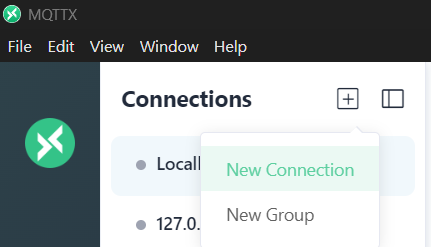
Once MQTTX is installed, launch the application. Under the Connections section, click the "+" icon and choose "New Connection" to create a new MQTT connection.
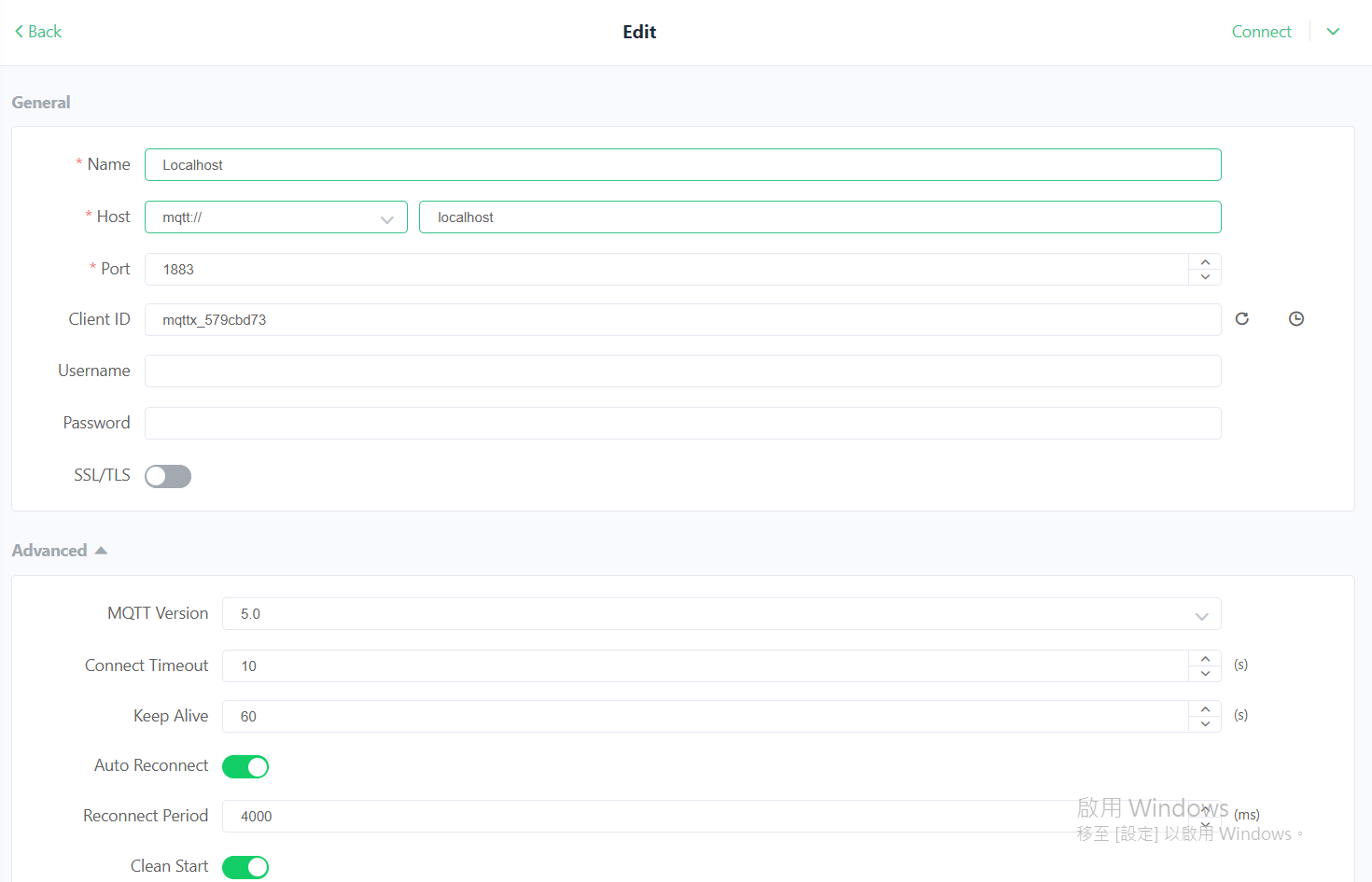
Enter the following settings. You do not need to specify a Client ID, then click "Connect".:
Vue3 Vite
Since browsers require WebSocket support, for example:
ws://localhost:9001
Therefore, you need to go back to the Mosquitto installation directory and locate the mosquitto.conf file.
Add a WebSocket listener to the configuration as shown below:
listener 1883
protocol mqtt

listener 9001
protocol websockets

allow_anonymous true
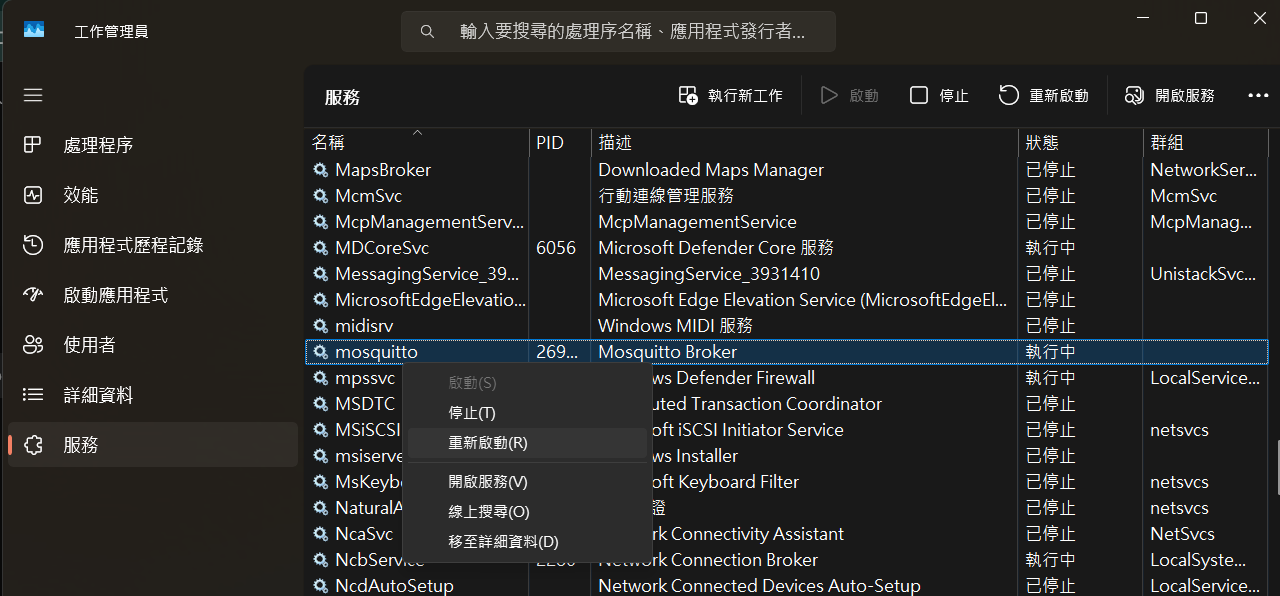
Next, open Task Manager and restart the Mosquitto service.
Create the Vue 3 + TypeScript code as shown below::
<template>
  <h3>接收到的訊息:{{ receiveMessage }}</h3>
</template>
<script setup lang="ts">
import { ref } from 'vue';
import mqtt, { type MqttClient } from 'mqtt';

const receiveMessage = ref();

const client: MqttClient = mqtt.connect('ws://localhost:9001');

client.on('connect', () => {
  console.log('MQTT connected');

  client.subscribe('factory/machine01/data');
});

client.on('message', (topic, message) => {
  receiveMessage.value = message.toString();
  console.log(topic, message.toString());
});
</script>
In MQTTX, switch to the "Publish" tab and enter the settings as shown in the figure below:
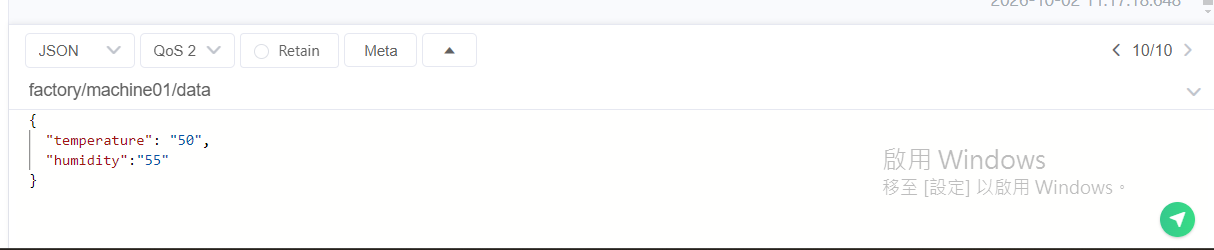
The web page will receive the message as shown in the figure below:

This setup can be used to simulate the monitoring of connected IoT devices. An example of a more advanced IoT device dashboard is shown below:

If you would like to learn more about our solutions, please contact us using the information below. Our team will be pleased to provide a live demonstration and discuss how our solutions can meet your needs.AIoT 。